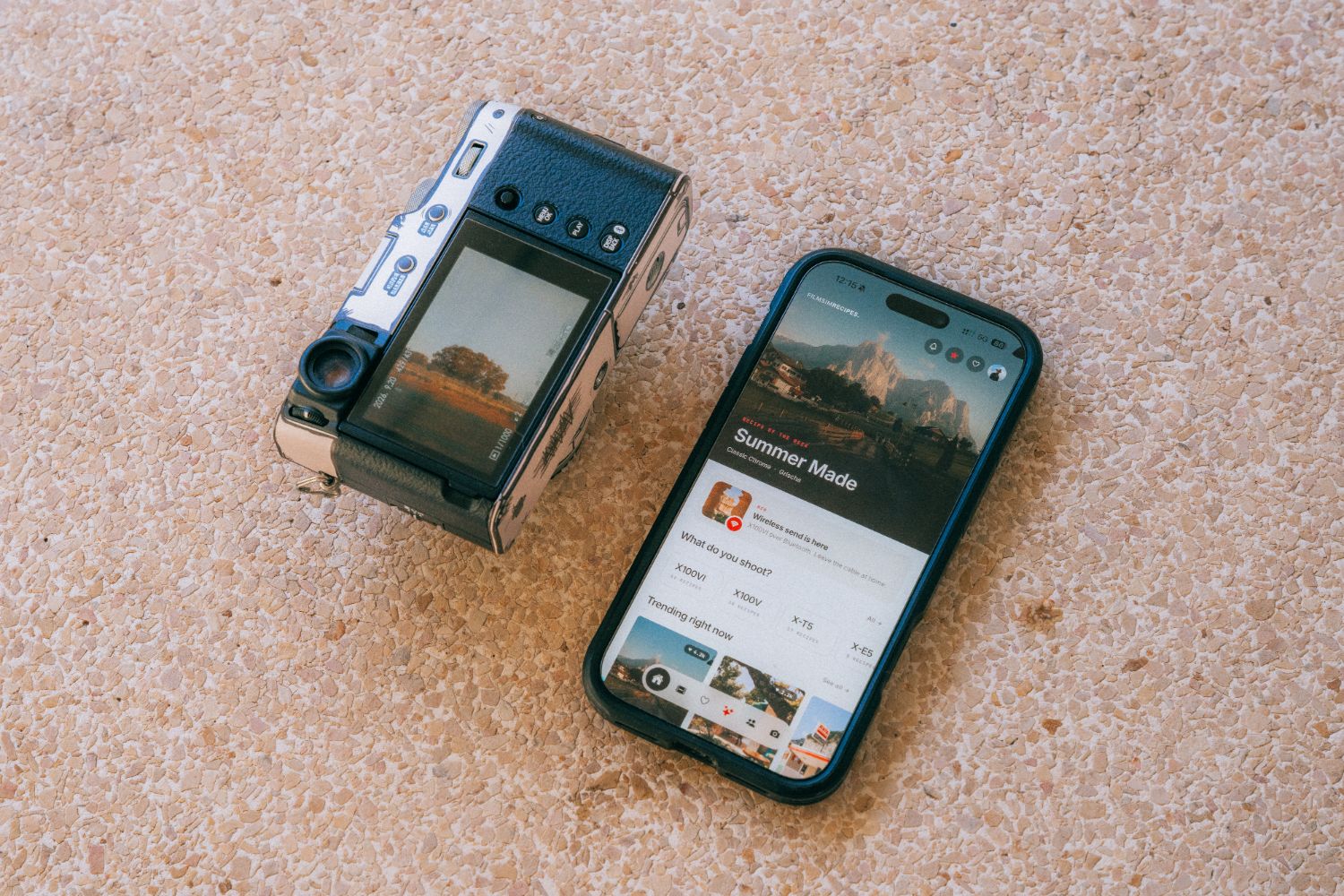
Send recipes to your Fujifilm over Bluetooth
No cable, no Wi-Fi. Send any recipe straight to a custom slot on your X100VI over Bluetooth, in seconds.
Until now, putting a recipe on your Fujifilm meant either dialing in every setting by hand or plugging the camera into your phone with a cable. Not anymore. With the latest version of Filmsim Recipes you can send any recipe straight to a custom slot on your X100VI over Bluetooth, in a few seconds, without leaving your seat.
This guide walks you through the one-time setup, how to send a recipe, how to send a whole set, and what to do if something does not connect the first time.
What you need
- Filmsim Recipes, the latest version, on iPhone or Android.
- A Fujifilm X100VI. Wireless sending works with the X100VI today. Other models can still receive recipes with a USB-C cable.
- Bluetooth turned on on your phone.
- A charged camera battery. Sending only takes a few seconds, but a camera that switches off halfway will stop the transfer.
One-time setup on the camera
You only do this once. After the first pairing, the app finds your camera on its own every time.
- On the camera, open MENU › Network/USB Setting › Bluetooth/Smartphone Setting.
- Set Bluetooth ON/OFF to ON.
- Select Pairing Registration. The camera starts waiting for a phone.
Before you continue, close the FUJIFILM XApp or any other app that talks to your camera. The camera accepts one Bluetooth connection at a time, so another app holding the connection will keep Filmsim Recipes from finding it.
Send a recipe, step by step
- Open a recipe. Browse the library and open the recipe you want to shoot. Every recipe page has a red Send to camera button just below the photos.
- Tap Send to camera. The app starts looking for your camera right away, over Bluetooth and over the cable at the same time, and uses whichever answers first. There is no connect button to press.
- Pair (first time only). The first time, your phone asks to pair with the camera. Tap Pair. On Android you will also be asked to allow Nearby devices, which is how Android names Bluetooth access.
- Choose a custom slot. Pick where the recipe should go, from C1 to C7. The app shows what is in each slot right now, so you can see what you are replacing. Only the slot you choose changes; your other slots and the rest of your camera settings stay exactly as they were.
- Keep your phone close for a few seconds. The recipe travels to the camera in small pieces and the camera confirms each one. When it is done, the app reads the camera again to check the recipe is really there, and only then shows the success screen.
Shoot with your new recipe
Sending a recipe saves it to the slot, but it does not switch the camera to that slot. To start shooting with it, press Q on the camera, choose the custom setting you just filled (for example C3) and you will see the recipe name. You can also find it under MENU › Image Quality Setting › Select Custom Setting.
Send a whole set at once
Sets let you fill several slots in one go, for example a summer trip with a different look in each of C1 to C7. Open Library › Sets, tap the red Send button next to a set, and the app writes each recipe to its own slot. Empty positions in the set are left alone on the camera. Over Bluetooth each slot takes a few seconds, so a full set of seven takes around a minute.
Prefer the cable?
The USB-C cable still works, and it is the way to go for cameras other than the X100VI. Set the camera’s USB mode to USB RAW CONV/BACKUP, connect it to your phone and tap Send to camera as usual. On an iPhone with a Lightning port you need Apple’s Lightning to USB Camera Adapter; a charging cable will not connect a camera.
Troubleshooting
- The app keeps waiting for the camera. Check that Bluetooth is on in the camera menu, close the FUJIFILM XApp and any other camera app, and keep the phone close to the camera.
- “The camera is busy.” Unplug the USB cable if it is connected (the camera cannot use Bluetooth and the cable at the same time), turn the camera off and on, and try again.
- Pairing did not complete. On the camera, choose Pairing Registration again. On the phone, open the Bluetooth settings, forget the camera, and send the recipe again so the phone asks to pair.
- I sent the recipe but the camera still shoots the old look. The recipe is in the slot, but the camera is still on another one. Press Q and choose the slot you sent it to.
Questions
Which cameras work wirelessly?
The X100VI today. We are mapping more Fujifilm models, and the USB-C cable works with every supported camera in the meantime.
Do I need Wi-Fi?
No. Sending uses Bluetooth only, so it works anywhere, even without signal.
Will it change my other settings?
No. The app reads the camera first, changes only the slot you picked and sends everything else back untouched.
Does it work on Android?
Yes. Wireless sending works on iPhone and Android with the same steps.
Get the latest version of Filmsim Recipes on the App Store or Google Play, pick a recipe and send it to your camera. Questions or ideas? Write to us at [email protected].