How Fujifilm Film Simulation Recipes Work
Film simulations, recipes and custom slots, explained simply. What the settings mean, why recipes are tied to your camera, and how to load one.
If you have just found your way to Fujifilm recipes, the whole thing can look like a wall of numbers: dynamic range, highlight, shadow, grain, white balance shift. It is simpler than it looks. A recipe is just a saved formula that makes your camera produce a finished look on its own, with no editing afterwards. Here is how the pieces fit together.
What is a film simulation?
Every Fujifilm camera has a set of built-in film simulations: color and tone profiles inspired by classic film stocks. Provia is the neutral standard, Velvia is punchy and saturated, Astia is soft, Classic Chrome is muted and documentary, Classic Negative is a nostalgic negative-film look, and Acros is a fine black and white. The simulation is the starting point, the base character of the image.
So what is a recipe?
A recipe is a film simulation plus every other setting dialled in around it. Instead of leaving the camera on default, a recipe tells you exactly how to set the dynamic range, the highlight and shadow tone, the color, the sharpness, the grain, the white balance and its shift, and a few others. Set them all and your JPEGs come out of the camera already looking the way the recipe intended. That is the whole point: a finished photo, straight out of camera, no computer.
The settings inside a recipe
- Film simulation: the base look (for example Classic Negative).
- Dynamic range: DR100, DR200 or DR400, how much highlight detail the camera protects.
- Highlight and shadow: the contrast at each end of the tones.
- Color: overall saturation.
- Sharpness, noise reduction, clarity: the fine rendering of detail.
- Grain effect: adds film-like texture.
- White balance and shift: the color temperature, plus a red and blue nudge that gives a recipe much of its character.
- Color Chrome Effect and FX Blue: depth in strong colors, on newer bodies.
You do not need to understand every one to use a recipe. You just copy the values.
Why recipes are tied to your camera
This is the part that trips people up. Film simulations and settings depend on the sensor generation, not just the model. Newer sensors (X-Trans IV and V) have more simulations and more controls: Classic Negative, Clarity and Color Chrome FX Blue only exist from 2019 onward, for example. So a recipe written for a newer body can call for a setting yours simply does not have.
The fix is easy: if your camera does not show a setting, skip it. The look will be very close. To see exactly which recipes were made for your body, check the cameras page, where every camera lists the recipes that work on it.
How to load a recipe onto your camera
There are two ways.
By hand: open a recipe, then go into your camera menu and save the values into one of the custom setting slots (C1 to C7). Once saved, you switch looks just by changing the slot.
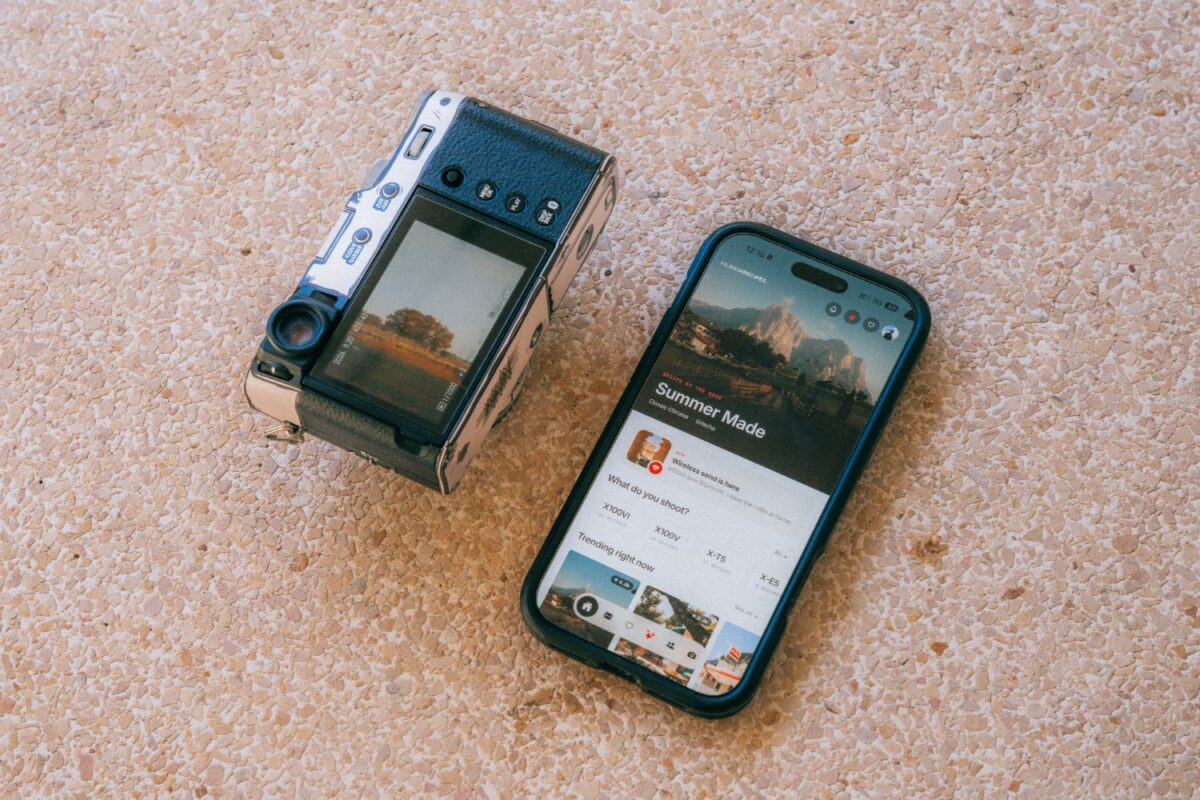
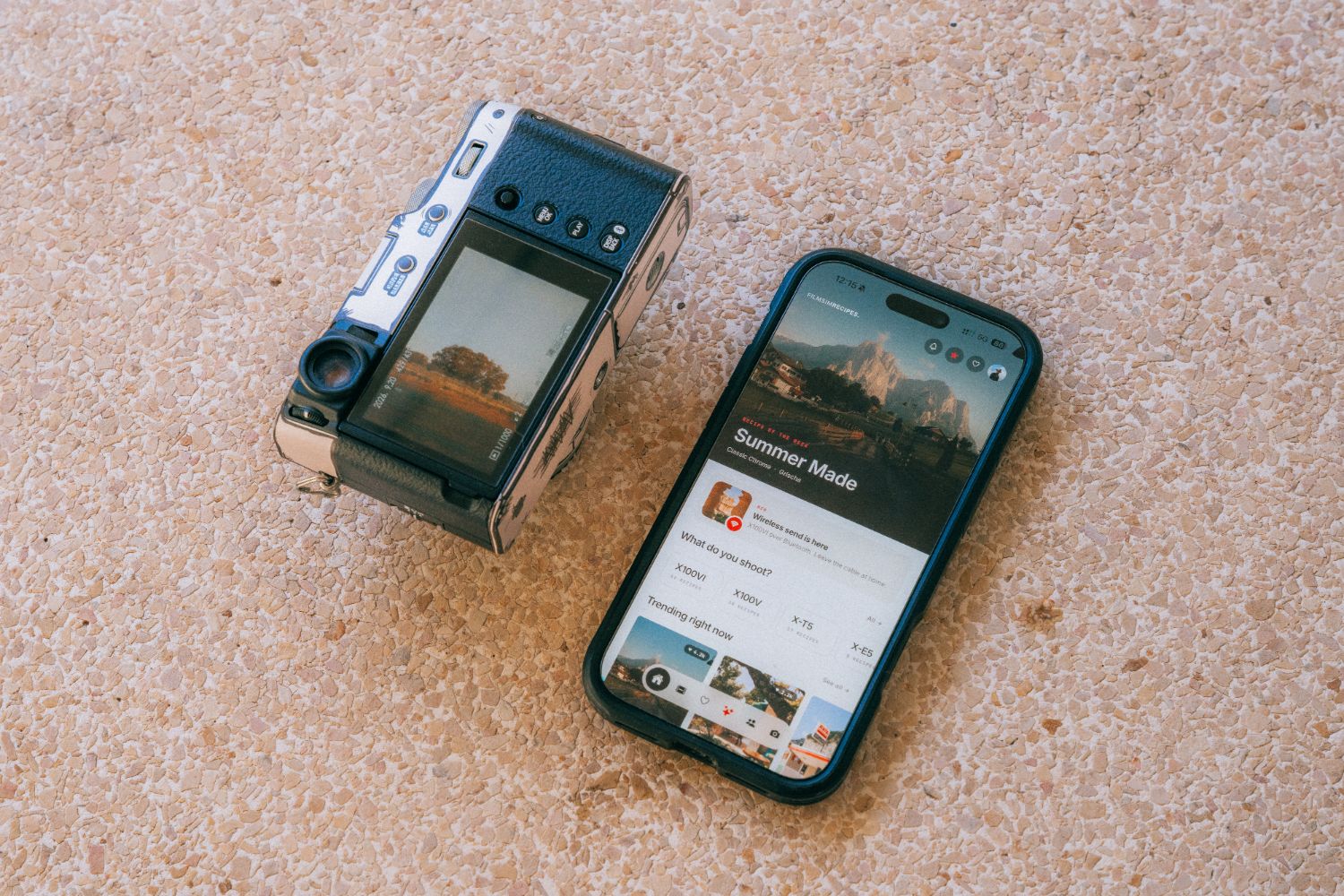
The fast way: the free Filmsim app writes a recipe to your camera for you. Pick a recipe, connect over USB, choose a slot, and it fills in every setting. No typing fourteen values with your thumb.
One thing people miss: shoot JPEG
A recipe lives in the camera’s JPEG engine. If a slot is set to RAW only, the look is there but you cannot see it, because RAW ignores the film simulation. Set your camera to JPEG, or RAW and JPEG, and the recipe shows up in the image straight away.
A film simulation is the base. A recipe is the full formula built on top of it. Your camera does the rest.
The one-line version
Where to start
The easiest first step is to browse by what you already have. Pick your body on the cameras page, or browse by look on the film simulations page. If you want a good first pair to compare, read Classic Negative vs Classic Chrome, the two looks most recipes are built on. Load one, send it to your camera, and start shooting finished photos today.